

 Early Access – Get ahead with the latest tools.
Custom Insights – Gain exclusive performance analytics.
Test & Optimize – Help shape the best-performing features.
Influence Product Development – Your feedback drives innovation.
📌 FAQs
Our new display widget is a smart, embeddable tool powered by our LMA script. It automatically detects accommodations mentioned on your webpage and dynamically lists up to three matching stays.
1. Add it to your site
To display the widget, paste the code snippet into your page or blog’s HTML exactly where you want it to appear.
For best conversion potential, we recommend placing the widget at the end of an article, in a sidebar, between sections, or below the fold.
Open your article in the HTML or Code Editor (in WordPress, this is usually called the “Text” tab).
Scroll to the spot where you want the widget to appear and paste the following code:
<div class="stay22-embed-widget"></div>
<p>) or within an appropriate section to avoid breaking your page layout.Save or update the page to apply the changes.
2. Make sure the LMA script is enabled
The widget requires the Stay22 LMA script to function, as it uses our AI to scan your content and powers the accommodation recommendations. If it’s not already installed, you can easily generate it directly from your Hub.
3. That’s it — you’re live
Once in place, the widget will automatically render based on the accommodations detected on the page. No additional setup required.
Yes. The widget requires the Stay22 LMA script to function. It’s what scans your content and powers the widget’s recommendations. If it’s not already on your site, you can easily generate and install it from your Hub.
Don’t worry — the first time you add the widget to a page, it may take a couple of minutes to appear. This delay is only needed for the first time when we have to scan the content in order to detect accommodations. Once it’s been loaded, the widget will render almost instantly the next time.
Technically yes, but please note: at this stage, if you add multiple widgets to the same page, they will display the same accommodation results. We recommend adding just one widget per page for now.
For this early testing phase, we’re focusing on English-only content to move faster and simplify development. However, the final version of the widget will absolutely support multiple languages.
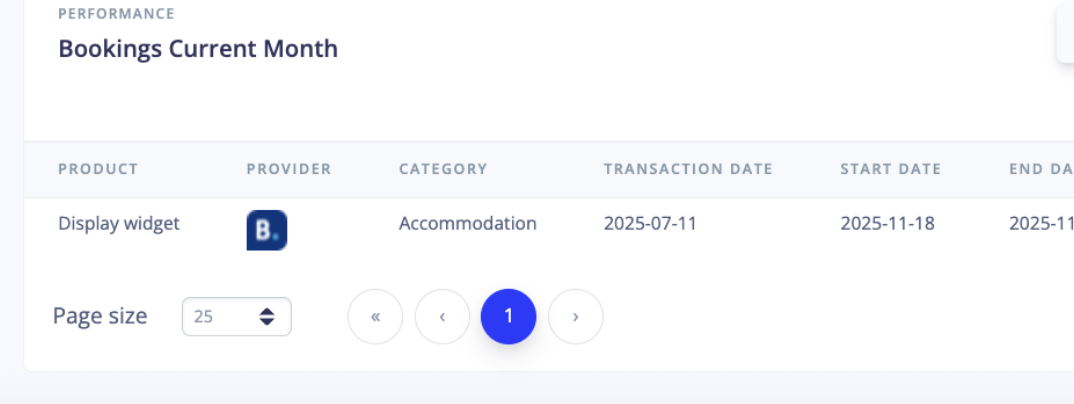
You’ll be able to track bookings generated by the widget directly in your Hub dashboard. Look for the Widget source Display Widget to differentiate performance during this testing phase.
Not yet — this early version requires manual placement. But we’re actively working toward a more automated, scalable solution. We really appreciate the extra effort you’re putting in right now — it’s incredibly helpful as we shape the final version of this tool.
If no accommodations are mentioned on the page, the widget won’t display. If there’s only one mentioned, it will show one — up to a maximum of three, in this early version.
No problem! You can sign up here.
Once you’ve signed up, you can start using the widget right away — no approval needed.
Reach out to your Partner Success Associate — they’re here to support you at every step.